
Purpose of Guide: This user guide is to assist FAFCC clinics with utilizing the Connect App to complete FAFCC Patient Services and Valuation forms by providing navigation and insights into the app.
If you have additional questions please contact our support team at (888) 667-2219 or support@primavera.care.
Part 1: Logging In and Navigation to Your Patient Service and Valuation Forms
Part 2: Completing Your Patient Service and Valuation Forms
Part 1: Logging In and Navigation to Your Patient Service and Valuation Forms
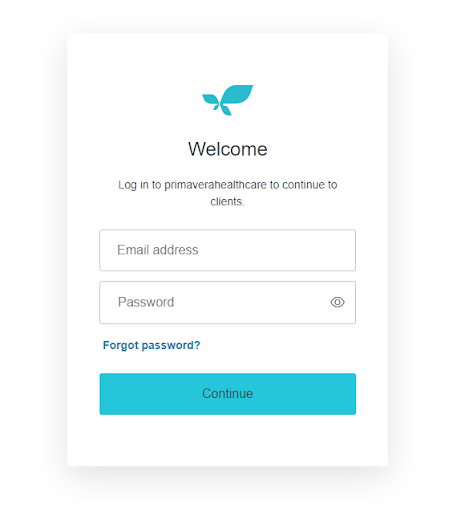
1. Navigate to the Login Page.
2. Enter your Email Address and Password and click continue to login (Note: If you have forgotten your password, please click the Forgot Password button and enter email address associated with your Primavera account. Once entered, if the email is correct a reset password email will be sent. Please check your spam email folder as well.)
3. Once you are logged in, click the button Go To App under Connect.
4. Connect will automatically populate and show the Connect app.
Navigate to the menu that is located on the left hand side. Click the Forms button.
5. Click FAFCC under Available Forms. Your FAFCC Patient Services and Valuation forms are now displayed for you to view and complete.
Part 2: Completing Your Patient Service and Valuation Forms
1. Click on a form title indicated in blue to open up the Patient Service or Valuation form to complete or update. (Note: If you have a question regarding what forms your clinic needs to complete, please contact FAFCC directly.)
2. Once the form is open, you will be able to review the questions and enter the answers in.
(Note: You have the option to print each form if you'd like)
3. Once you click the Complete button, you will automatically be navigated back to your available FAFCC forms page.
Important Reminder: You must click the Complete button in order to save any answers entered into forms. Even if you aren't done completing the form, this is the only way to save your answers so far.
If you have completed or answered some of the forms questions you will notice, the number of answered questions out of the total questions on the form completed are updated under the form title.
You will also notice if you have answered all the questions on the form, the form will show Complete versus Incomplete.
Optional Features:
- Easily navigate between All your available forms, Completed and Incomplete.
- Mark if a form belongs to your clinic or not by clicking on the check mark next to the form title. (Note: Green check mark you are indicating the form belongs to clinic and red is indicated the form doesn't belong to clinic)
Part 3: Updating Forms
Before your FAFCC deadline, you can update your FAFCC Patient Services and Valuation forms that have been complete or started already by following the steps below.
1. Click on a form title indicated in blue to open up the Patient Service or Valuation form to update your answers.
2. Once form is open, you will be able to review the questions and update questions.
3. Once you click the Complete button, your form will be updated. If you do not click the Complete button, your form will not be updated.
Part 4: Valuation Summary
As you complete your FAFCC Patient Services and Valuation forms, your Valuation Summary will automatically populate. Follow the steps below to navigate to view your Valuation Summary.
1. On the FAFCC Patient Services and Valuation forms page, click the Valuation Summary button located on the lower left hand side.
2. Your clinics valuation summary will now show including the Total Value of Care.
If you have additional questions please contact our support team at 888-667-2219 or support@primavera.care.

Comments
0 comments
Please sign in to leave a comment.